1. Navigating the Admin Dashboard (Command Center)
Welcome to the Administrator Command Center. This dashboard is the heart of the Franchise Ordering Portal, providing Head Office with a top-down, real-time view of global network performance, financial analytics, and system health.
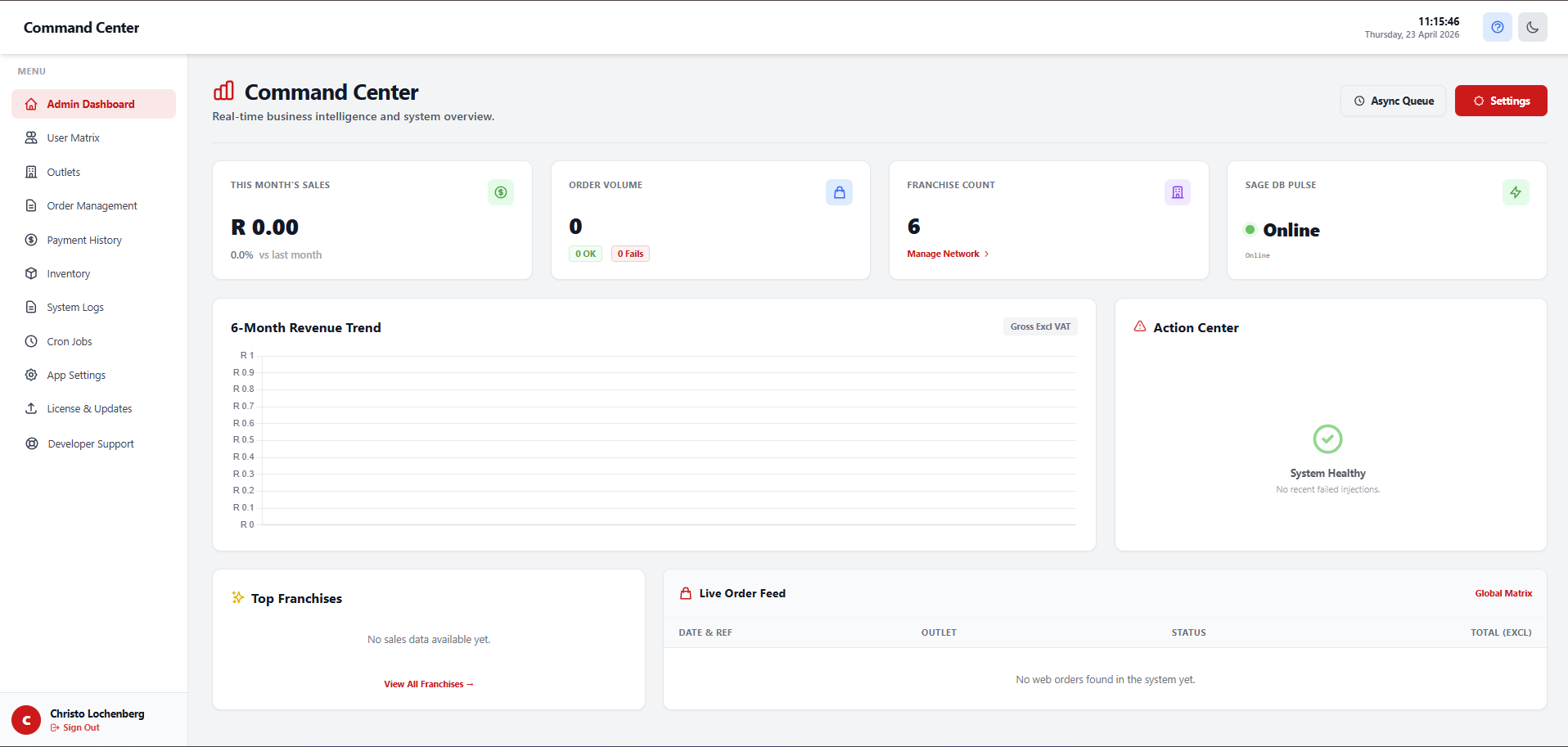
Top KPI Grid
At the top of your dashboard, you will see your primary Key Performance Indicators (KPIs):
- This Month's Sales: The total gross revenue generated through the web portal this month, including a percentage growth indicator comparing it to the previous month.
- Order Volume: The total number of orders placed, broken down by "Success" (injected into Sage) and "Failed" (requiring attention).
- Franchise Count: The total number of active outlets in your network.
- Sage DB Pulse: A critical system health monitor. If this throbs green ("Online"), the portal is successfully communicating with your Sage Evolution server. If it turns red ("Offline"), the API bridge is down and live data cannot be synced.

Analytics & Leaderboards
Below the KPIs, the dashboard provides visual analytics to help you track performance:
- 6-Month Revenue Trend: An interactive line chart tracking your gross sales trajectory over the past half-year.
- Top Franchises: A leaderboard ranking your highest-performing outlets based on their purchasing volume.
Action Center & Live Order Feed
The Action Center is your triage area. If an order fails to inject into Sage (e.g., due to a network timeout or missing inventory item), it will immediately appear here in red so your team can investigate and push it through manually.
The Live Order Feed provides a real-time, scrolling list of every order being placed across the entire franchise network as it happens.

2. Managing Outlets & Franchises
The Outlets page is where you manage your franchise network and control their access to the ordering portal.
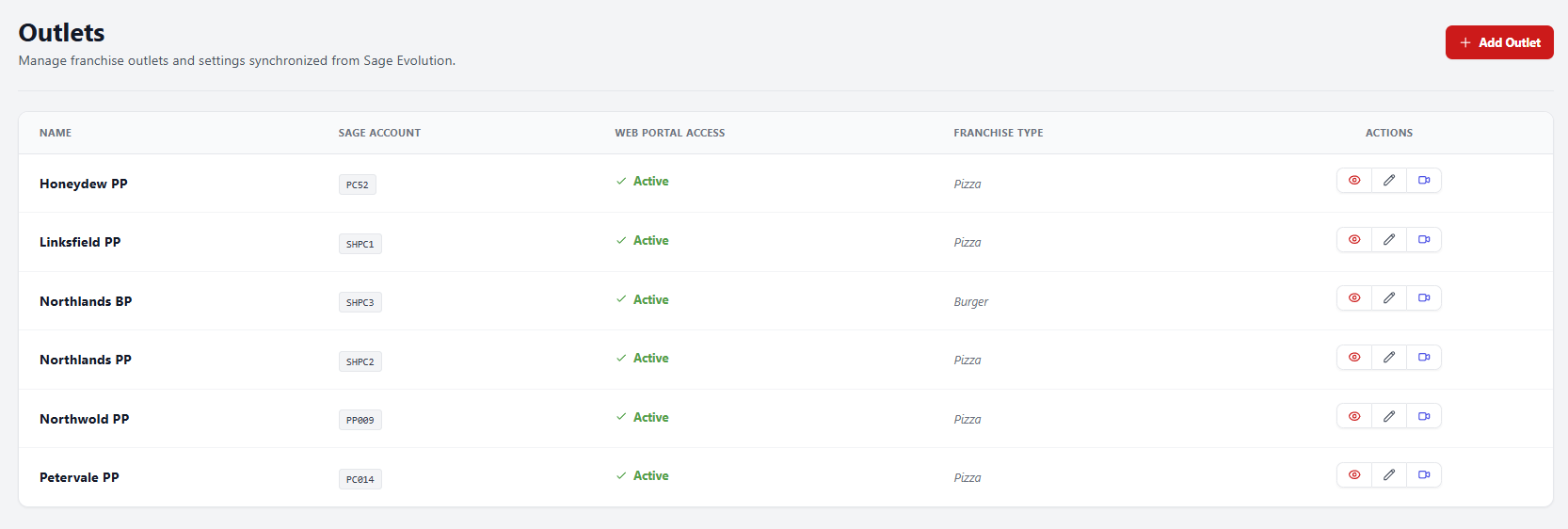
The Outlet Matrix
This grid lists all franchises, displaying their Name, linked Sage Account code, Franchise Type, and their Web Portal Access status.
Outlet Actions
On the right side of each franchise row, Admins have three action buttons:
- View (Eye Icon): Opens the detailed profile of the franchise.
- Edit (Pencil Icon): Allows you to map the franchise to a different Sage Account, update their physical details, or toggle their Web Portal Access on/off. (Note: Disabling access immediately locks the franchise out of the system.)
- Impersonate (User Icon): A powerful support tool. Clicking this logs you in as that specific franchise. You will see exactly what they see, allowing you to troubleshoot issues or place orders on their behalf. To return to the Admin panel, simply click the "Switch Outlet" dropdown at the top of the sidebar.
3. Global Order Management
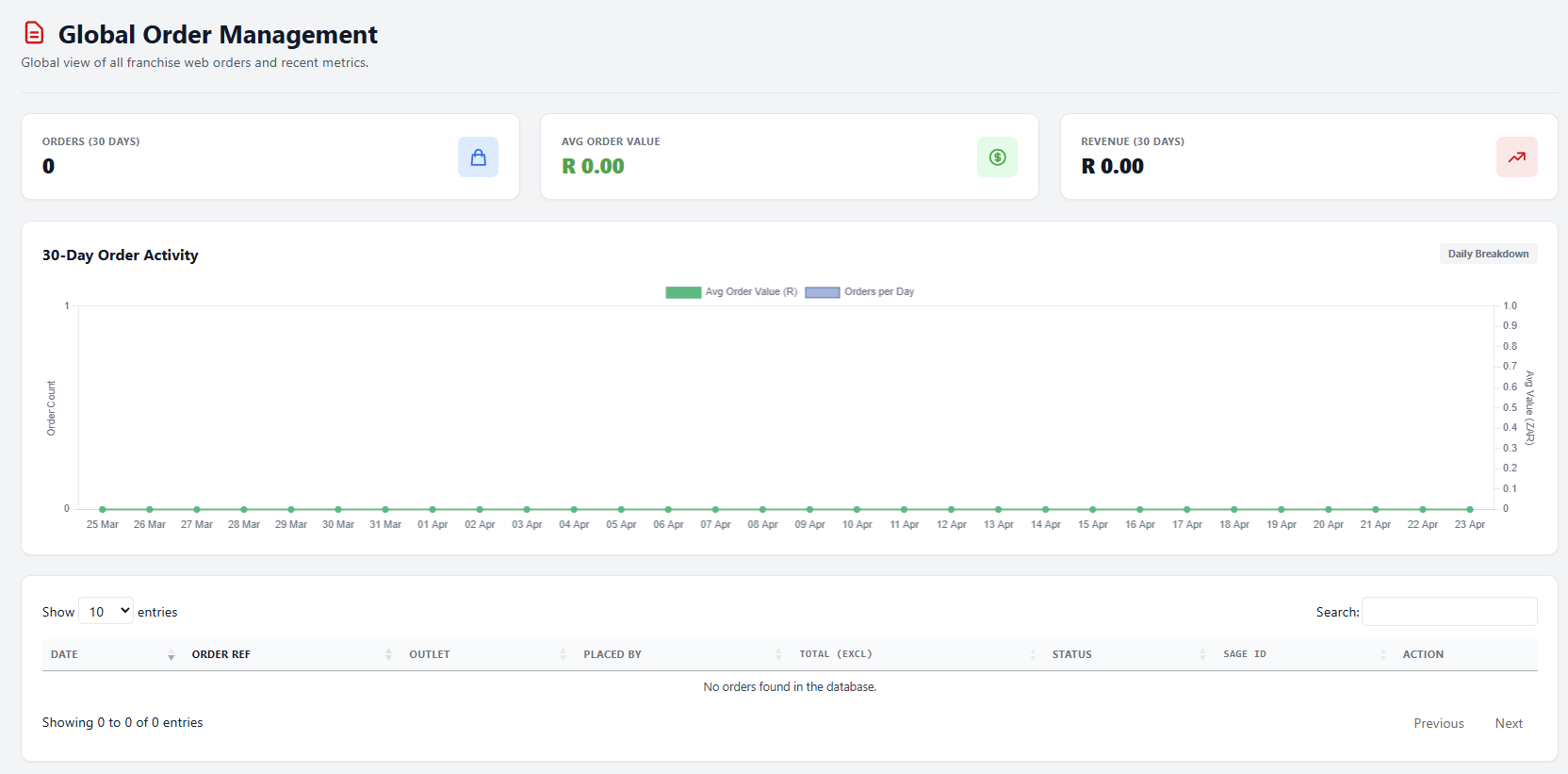
The Order Management screen is a comprehensive database of every cart submitted across the entire network.
Tracking Order Statuses
Unlike the Franchise view, which only shows their own orders, this screen allows Admins to search, filter, and track all network activity. Pay close attention to the Status column:
- Success: The web order was perfectly converted into a Sales Order (DocType 4) inside Sage.
- Pending: The order is currently in the asynchronous queue waiting to be injected into Sage.
- Failed: The bridge rejected the order. Clicking on the order will display the exact API error message so you can resolve the issue.
4. Global Payment History
If your system utilizes the DPO PayGate integration for account settlements, the Payment History tab acts as your financial ledger.
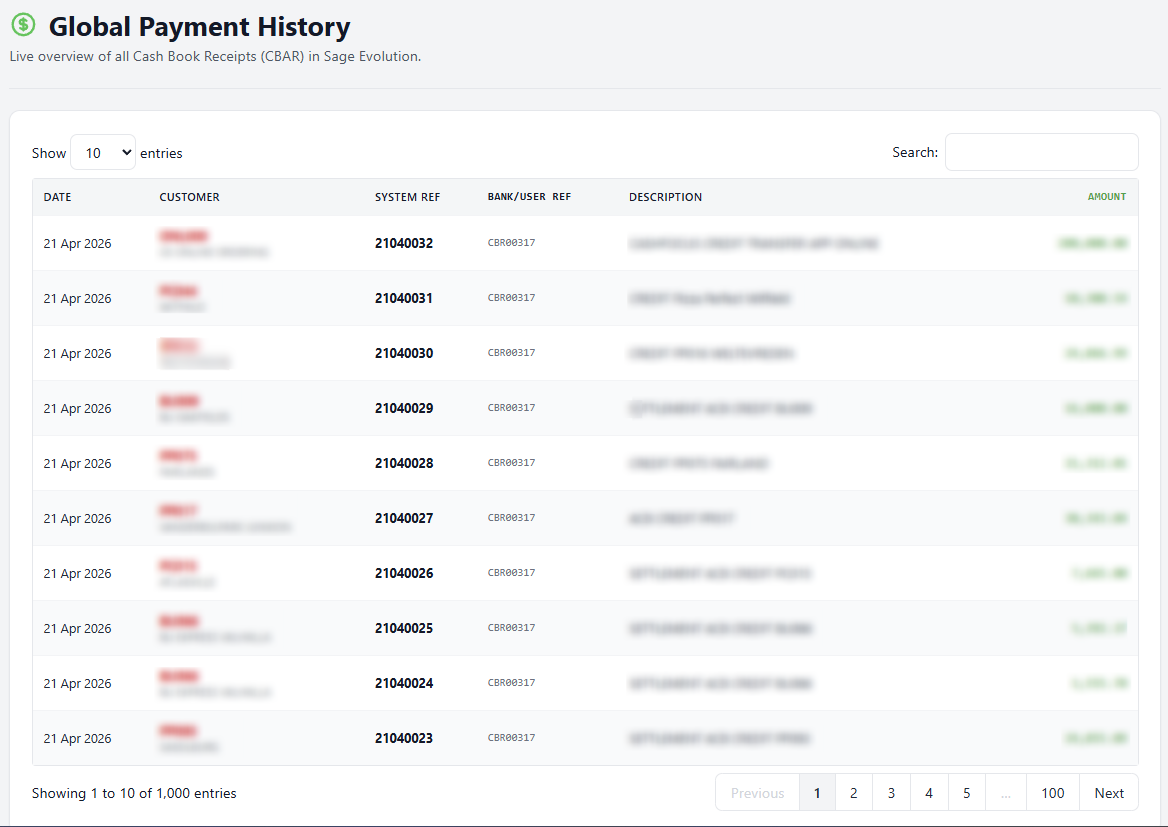
This view displays a chronological list of all online payments made by franchises. It includes the Date, Franchise Name, Transaction Amount, and the specific DPO PayGate Reference Number. Use this screen to reconcile online payments with your bank statements and ensure they have been properly allocated in Sage.
5. User Matrix (Access Control)
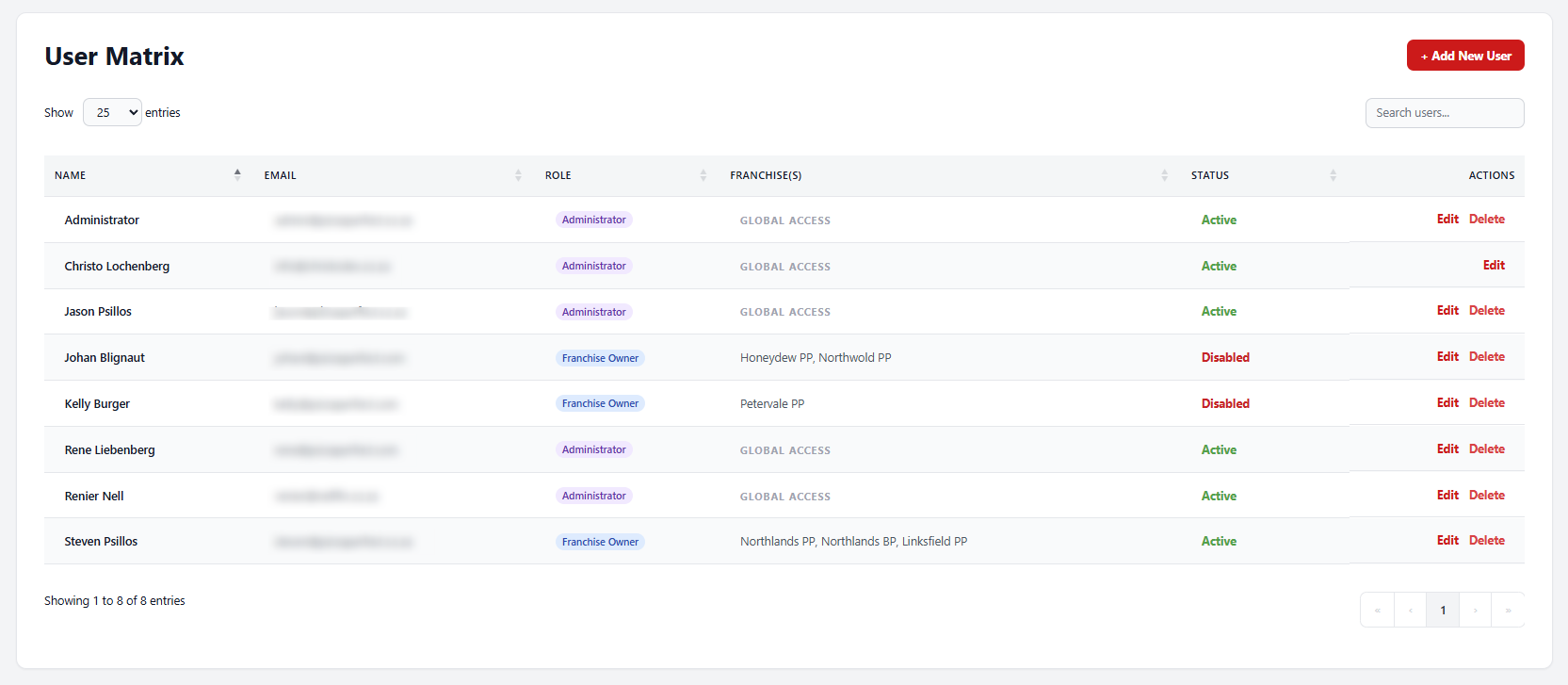
The User Matrix is where you control who has access to the portal and what permissions they hold.
Managing Roles
When adding or editing a user, you must assign them a specific role:
- Admin: Has unrestricted access to all financial data, settings, system logs, and user management.
- User (HQ Staff): A restricted Head Office account. They cannot see financial charts or settings. They only have access to the Franchise list (to impersonate and assist) and the Global Order feed.
- Outlet (Franchise Owner): A standard franchise account restricted to viewing only their own specific data and pricing.
6. Application Settings & Configuration
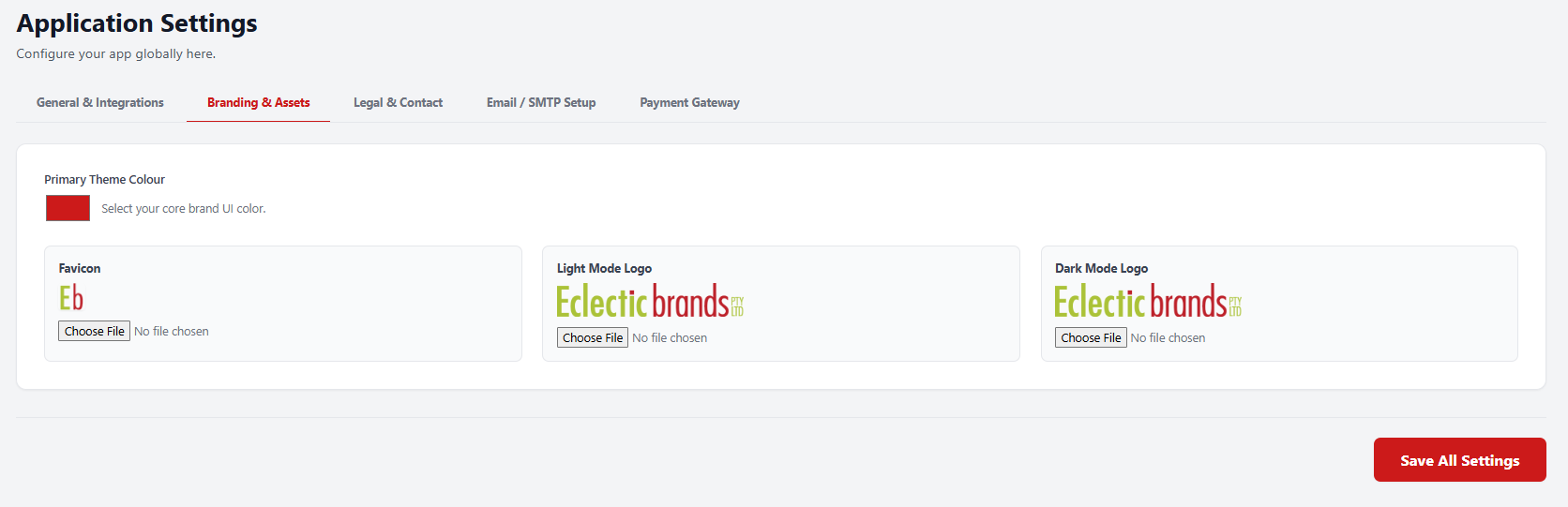
The App Settings page allows you to customize the portal's behavior and branding without needing to write any code.
Key Configurations
- Global BCC Emails: You can enter a comma-separated list of email addresses here. Every system email (order confirmations, payment receipts) will be silently BCC'd to these addresses for auditing purposes.
- Collection Notification Emails: Enter the email addresses for your warehouse or dispatch team. Whenever a franchise selects "Collection" at checkout, an urgent notification will be routed to these addresses.
- Branding: You can update the primary Theme Color (which changes buttons and charts throughout the app) and upload new Light and Dark mode logos.
- Legal Documents: Paste your Terms of Service and Privacy Policy text here to update it globally across the portal.
7. Advanced Developer Tools
The bottom section of the Admin sidebar contains advanced tools primarily used for IT troubleshooting and system maintenance.
- System Logs: A raw feed of internal application events, PHP errors, and API Bridge communication logs. Use this when diagnosing failed orders.
- Async Queue (Cron Jobs): Shows the status of the background task manager. This handles the sending of emails and processing of heavy data syncs without slowing down the website.
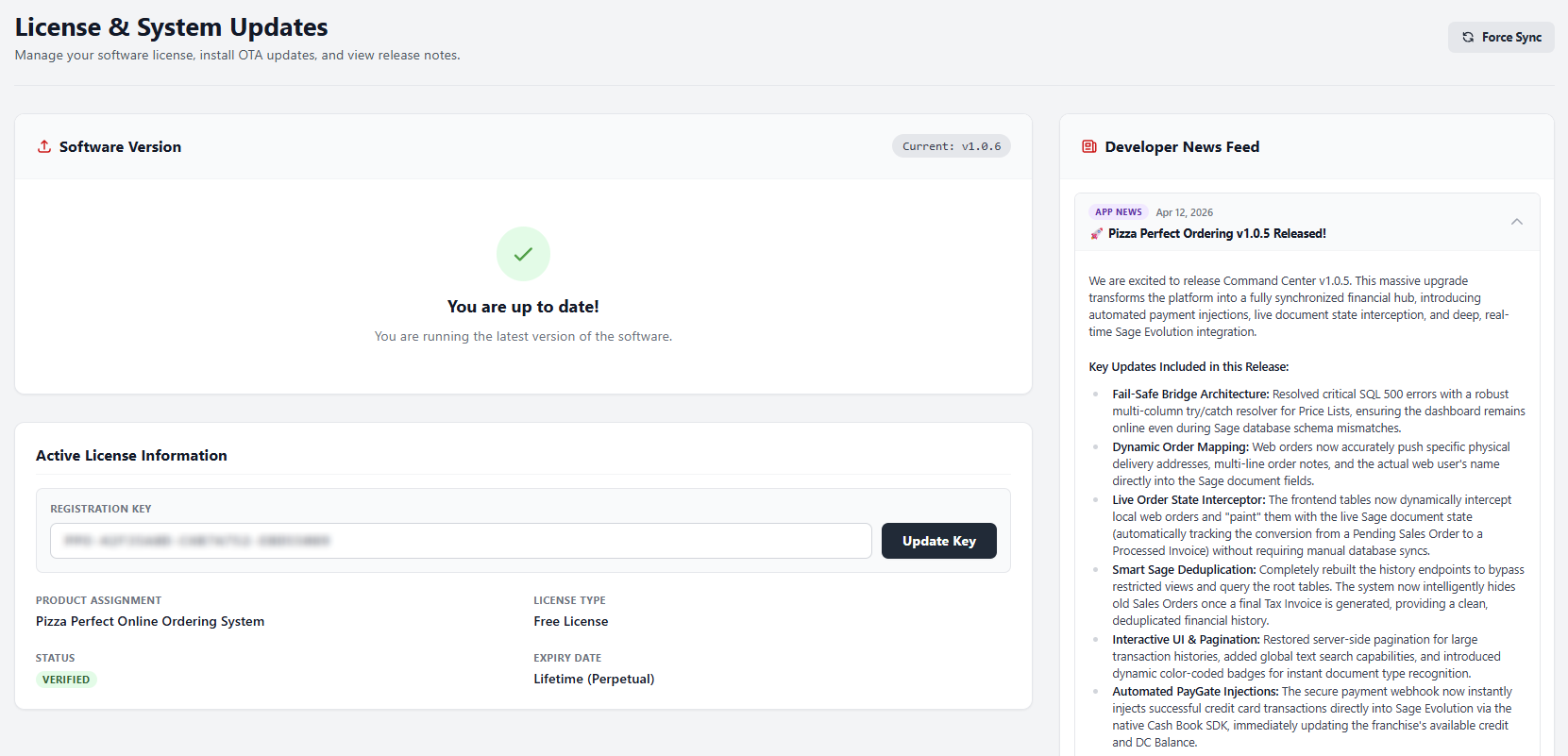
- License & Updates: Displays your current software version and license validity with RC Developments.
- Developer Support: Provides quick access to technical support contact details if the Sage Bridge goes offline or you experience a critical database error.