1. Navigating "My Dashboard" (Franchise Overview)
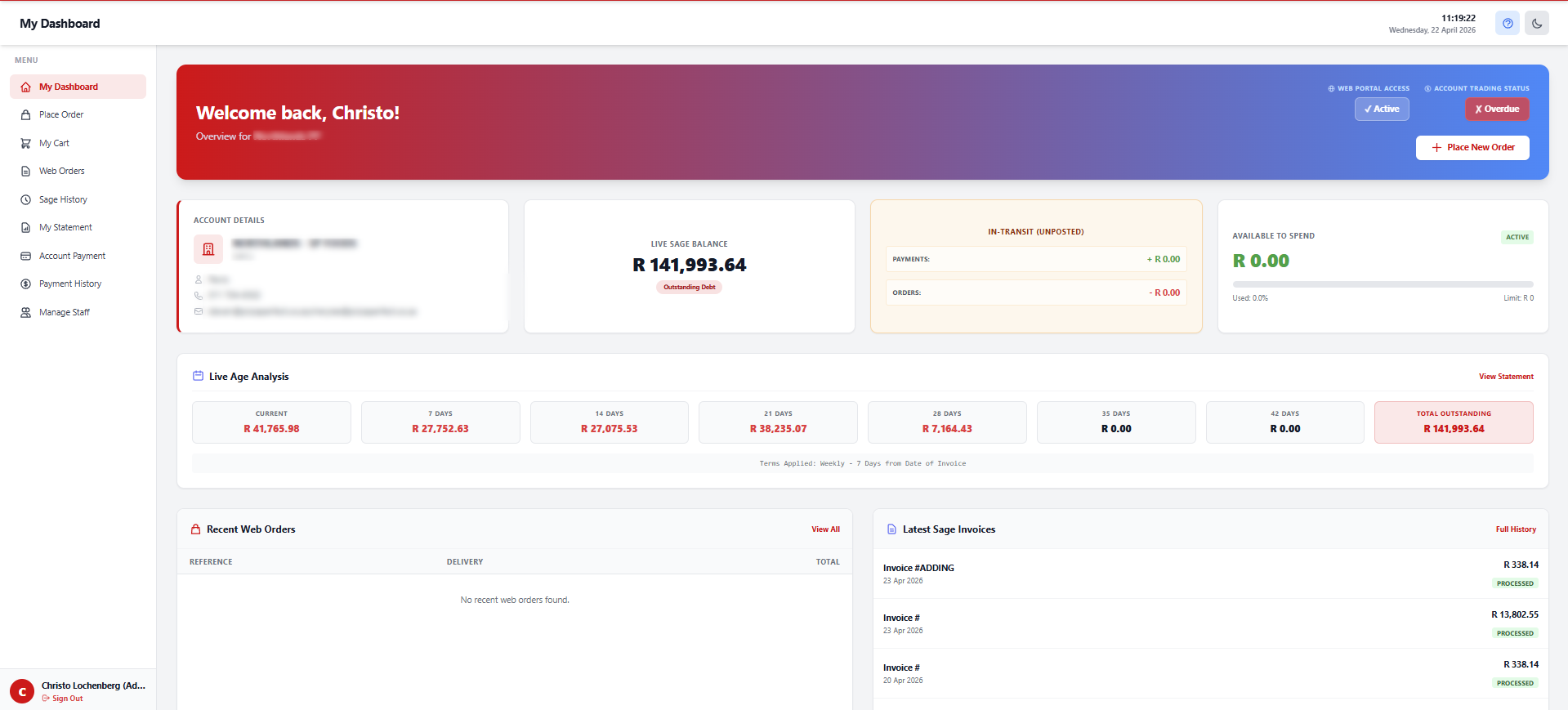
Welcome to your Franchise Dashboard! This is the central command center for your account. When you log in, this is the first page you see, providing a real-time, bird's-eye view of your financial standing and recent activity synchronized directly from our Sage Evolution ERP system.
The Welcome Banner & Status Indicators
At the very top of your dashboard, you will see a personalized welcome banner. On the right side of this banner, there are two critical status indicators:
- Web Portal Access: This confirms whether your account is currently allowed to log into the online system.
- Account Trading Status: This is your live financial health check. It will display Good Standing if your account is healthy. If you have exceeded your credit limit, have invoices older than 14 days, or have been placed on hold by Head Office, this badge will turn red and clearly state the reason (e.g., "Account Overdue" or "Credit Limit Reached").

Financial Overview Cards
Directly below the banner, you will find four cards detailing your exact financial metrics:
- Account Details: Displays your registered franchise name, Sage account number, and primary contact information.
- Live Sage Balance: Shows your exact outstanding debt. If you have overpaid or are in credit, this card will highlight your balance in green.
- In-Transit (Unposted): This card tracks money and orders that are currently processing. It shows payments you have made that haven't cleared yet, and pending orders you have placed that haven't been invoiced yet.
- Available to Spend: This is your actual purchasing power. The system takes your Credit Limit, subtracts your outstanding debt, subtracts pending orders, and adds pending payments to give you a live available balance. A progress bar shows exactly how close you are to your limit.

Live Age Analysis & Recent Activity
Further down the dashboard, you will find your Live Age Analysis. This breaks down your outstanding balance into specific time buckets (Current, 30 Days, 60 Days, etc.). Remember, balances older than 14 days may restrict your ability to place new orders.
Finally, at the bottom of the page, you have quick-access grids for your Recent Web Orders (orders placed through this portal) and your Latest Sage Invoices (official invoices generated by the system).

2. Place Order (The Product Catalog)
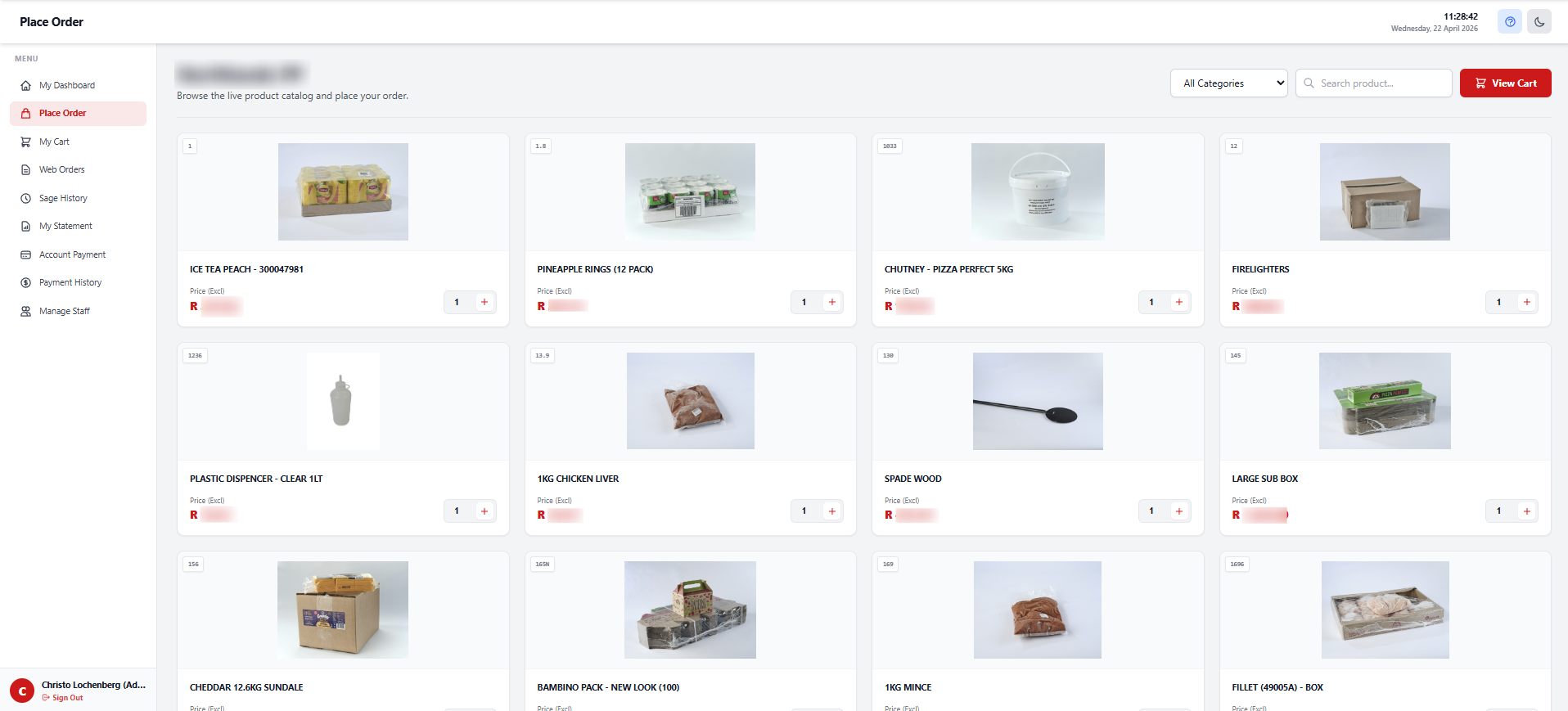
The Place Order page is where you browse products and build your cart. It is directly linked to the central warehouse, meaning you will only see products with accurate, real-time pricing and available stock quantities.
Browsing & Searching
- Category Filter: On the left side of the screen (or via a dropdown on mobile), you can click specific product categories to filter the catalog.
- Smart Search: Use the search bar at the top to instantly find products by their Item Code or Description.
Product Cards & Adding to Cart
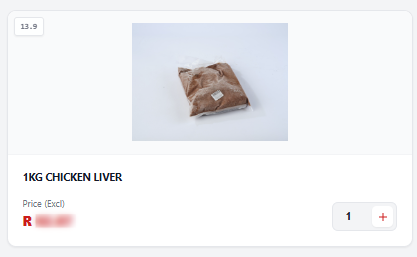
Each product card displays the item's image, code, description, and your specific franchise pricing.
To order an item, simply type the quantity you need into the box and click Add to Cart. The system performs a live stock check the moment you click this button; if you request 50 items but only 30 are available, the system will alert you and prevent you from adding unavailable stock to your cart.
3. My Cart & Checkout
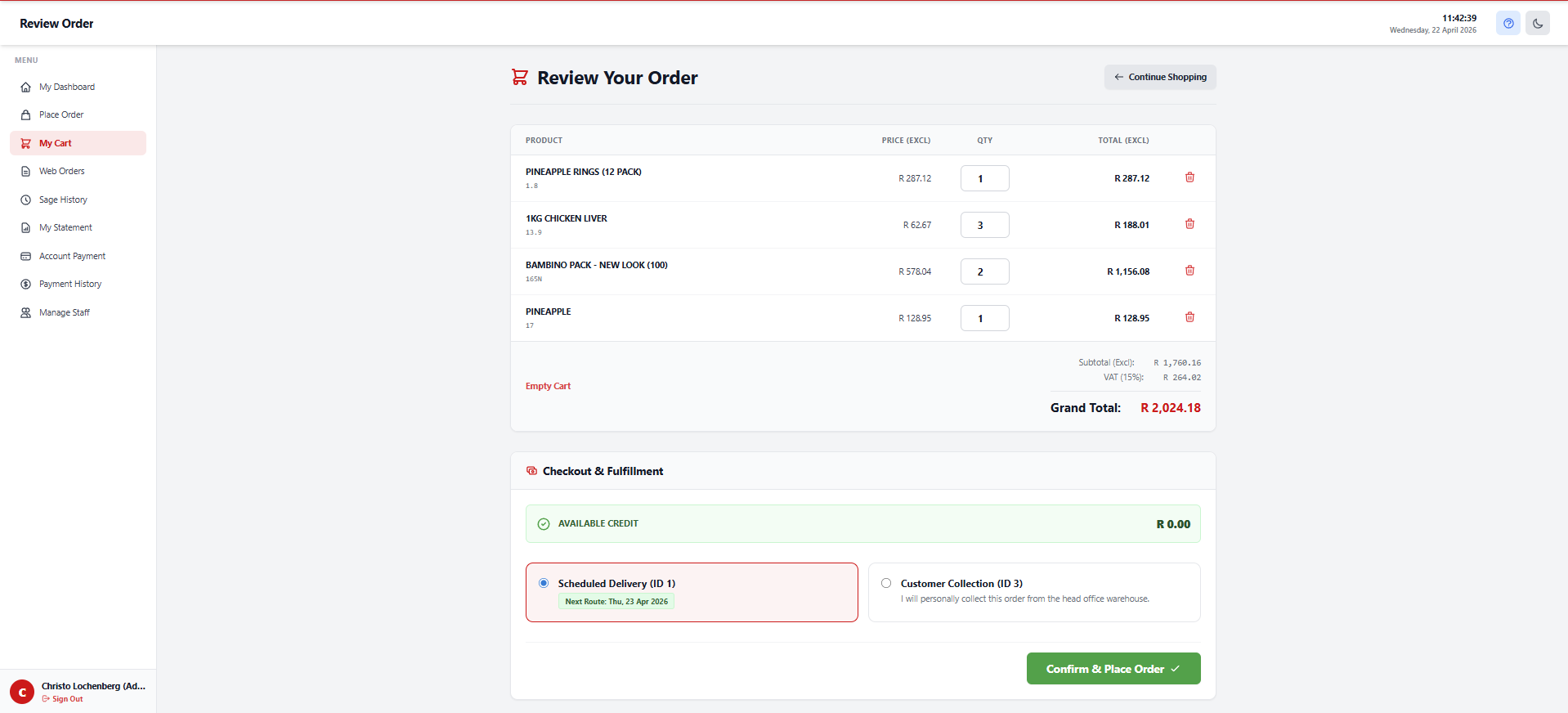
Once you have selected your items, navigate to My Cart via the sidebar. This page is where you review your order, adjust quantities, and finalize your submission.
Reviewing Your Order
Your cart displays all selected items, their individual prices, quantities, and a total summary (including the standard 15% VAT). If you need to change a quantity, update the number in the box and click the Update Cart button. To remove an item completely, click the red trash can icon next to it.
Delivery vs. Collection
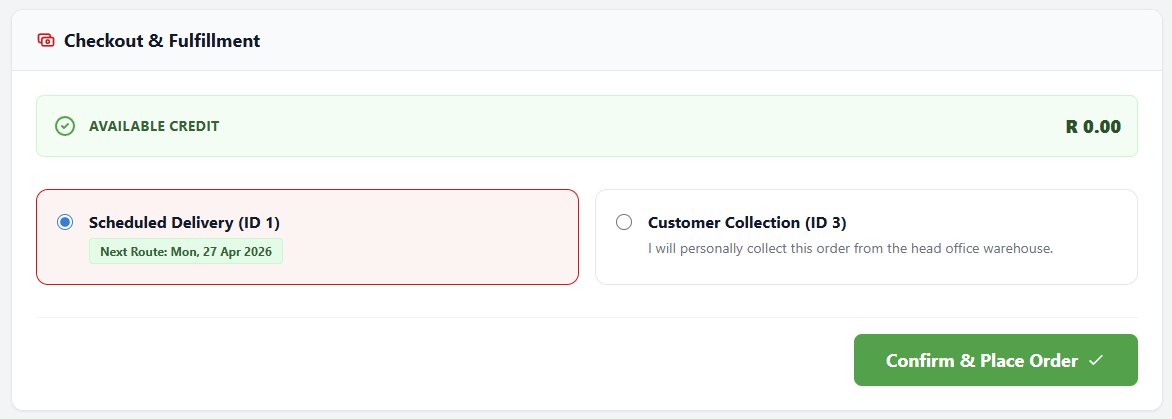
Before checking out, you must select your fulfillment method. Choose whether you require standard Delivery or if you will be arranging a Collection. The system will provide an estimated date based on your selection.
Checkout Verification & Guardrails
When you click Place Order, the system performs a final, strict financial check against the central database to ensure your account is in good standing. Your checkout may be blocked if:
- Your account has been manually placed On Hold by Head Office.
- You have an Overdue Balance older than 14 days.
- The total of your cart exceeds your Available Credit Limit.
Note: Under special circumstances, Head Office may grant specific leniency on your account terms, which will automatically allow you to bypass these limits.
4. Web Orders vs. Sage History
The system provides two distinct ways to track your orders, located in the sidebar: Web Orders and Sage History. Understanding the difference between these two views is crucial.
Web Orders
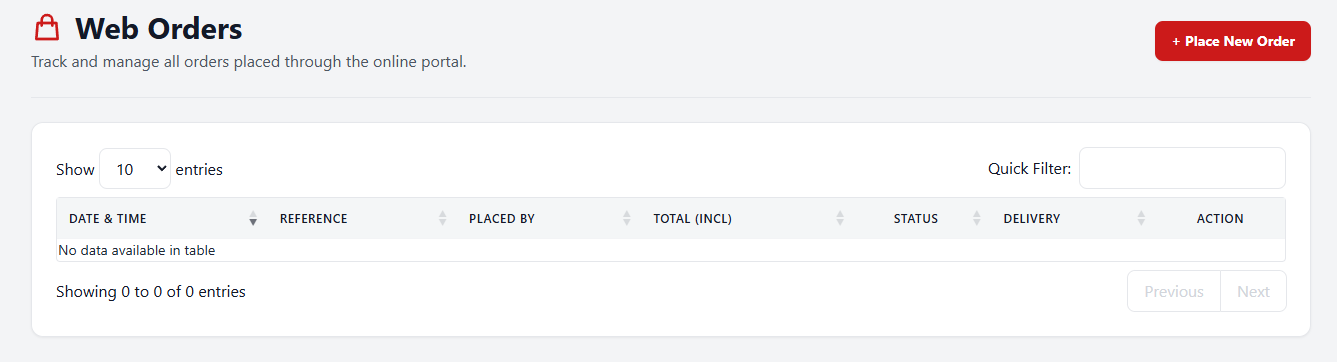
The Web Orders page shows a history of every cart you have successfully submitted exclusively through this online portal.
- It displays the date, the Web Order Reference number (e.g., WEB-0000000001), the staff member who placed it, and the total value.
- Clicking the View button lets you see the exact items you requested on that specific day.
- You will see status badges indicating if the order was successfully injected into the system or if it is pending.
Sage History
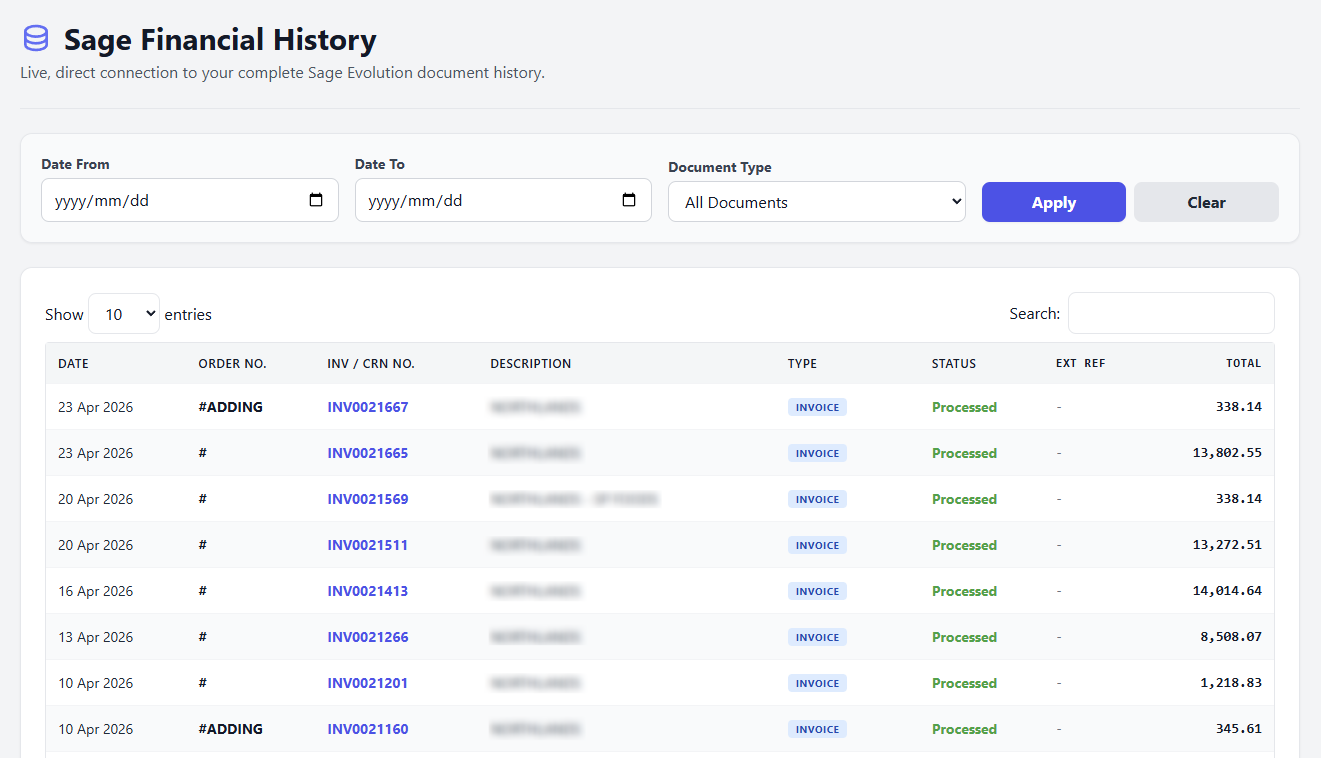
The Sage History page is your complete, official ERP history. It shows everything happening on your account, regardless of whether it was ordered online, over the phone, or processed manually by Head Office.
- This grid displays official Invoices, Credit Notes, and processed Sales Orders.
- It includes accurate document states such as Unprocessed, Processed, or Cancelled.
- Use this page when you need to match your web orders to their final, official tax invoices.
5. My Statement & Payments
The portal allows you to manage your administrative and financial duties without needing to contact the accounts department.
My Statement
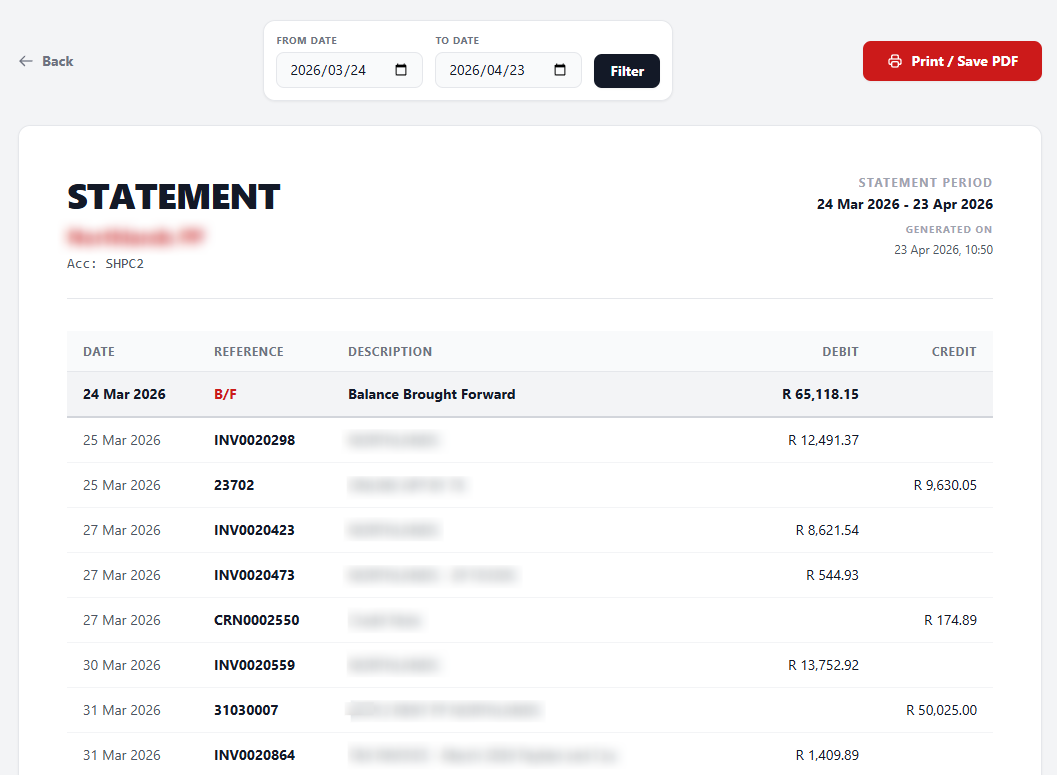
Navigate to My Statement to generate a live view of your account. You can select a specific date range (e.g., the last 30 days) to view all transaction lines, invoices, and payments that have occurred. This page also prominently displays your Age Analysis buckets, helping you track exactly which amounts are current and which are falling overdue.
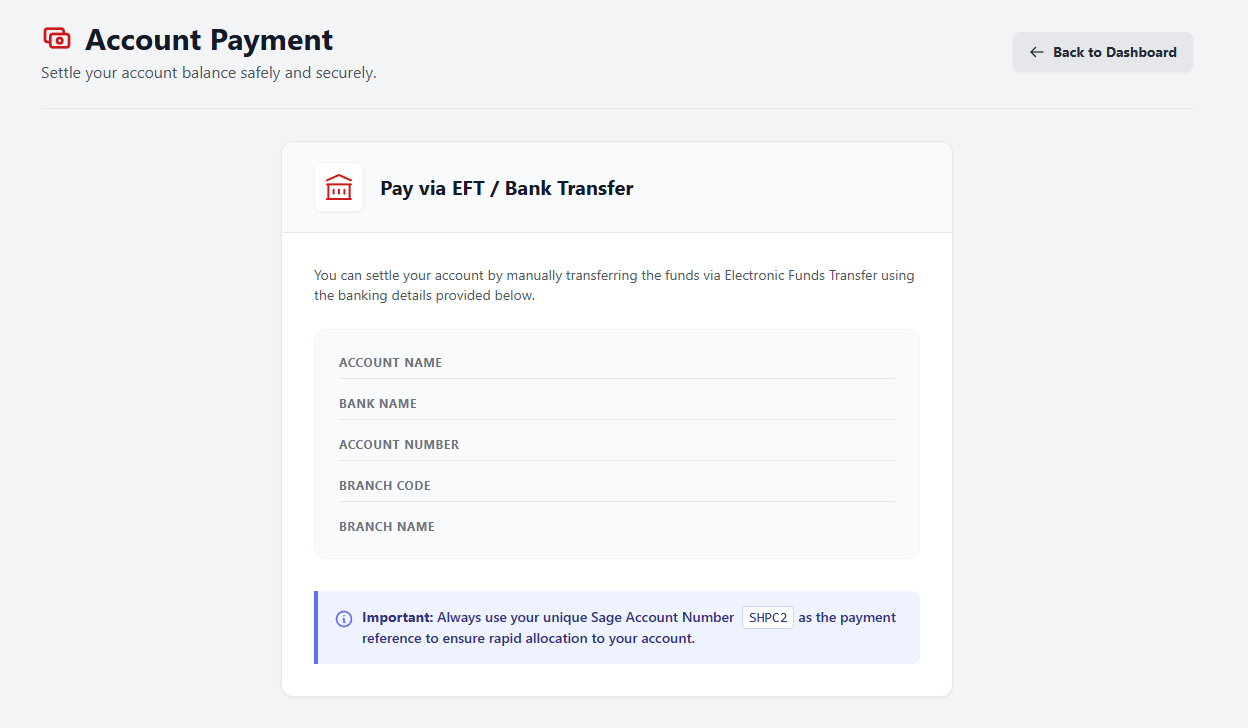
Account Payment (DPO PayGate)
To settle your account or pay an outstanding invoice, navigate to Account Payment. This screen integrates securely with our DPO PayGate facility. Simply enter the amount you wish to pay, and you will be redirected to a secure portal to complete the transaction via Credit Card or EFT. Once completed, the payment will automatically reflect in your "In-Transit (Unposted)" balance on your dashboard.
6. Managing Your Staff & Profile
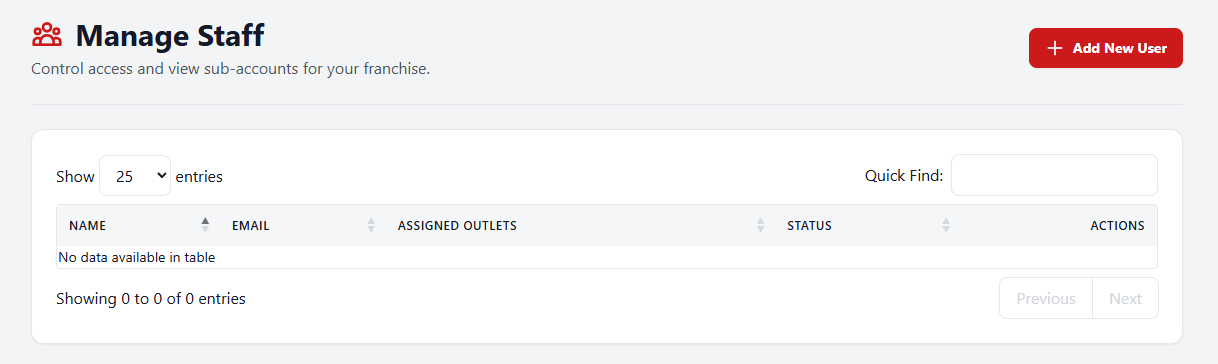
Manage Staff
Franchise Owners have the ability to create secondary logins for their employees. By navigating to Manage Staff, you can add new users, update their email addresses, or reset their passwords. Staff members will have access to place orders, but certain administrative views may be restricted from them depending on Head Office configuration.
Profile & Display Settings
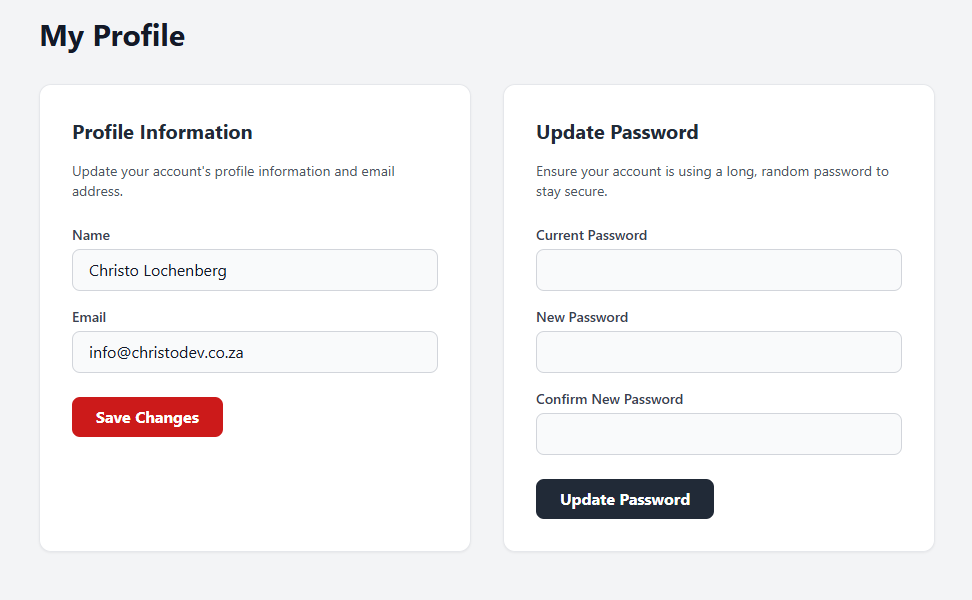
At the very bottom of the sidebar, you can click on your name to access your Profile. Here you can update your personal login details and password.
The system also fully supports Light Mode and Dark Mode. Your device will automatically dictate the theme, but you can adjust your browser/device settings to experience the portal in the color scheme that is most comfortable for your eyes.